

How to use GitHub with Android Studio 1.x
Previously, I wrote a post called How to use GitHub with Android Studio, which was based on the beta version of Android Studio. Since then, Android Studio has progressed past the Beta phase and is now officially the primary IDE for Android.
As I expected, they added GitHub support so you no longer have to follow the tutorial in my previous post to use GitHub with Android Studio.
Video Demonstration
Here is an updated version of this tutorial. I am currently running Android Studio 1.0.2 on Windows 8.1.
Before starting this project, ensure you are registered on GitHub.
First, open your Android Studio project and select VCS >Import into Version Control > Share Project on GitHub
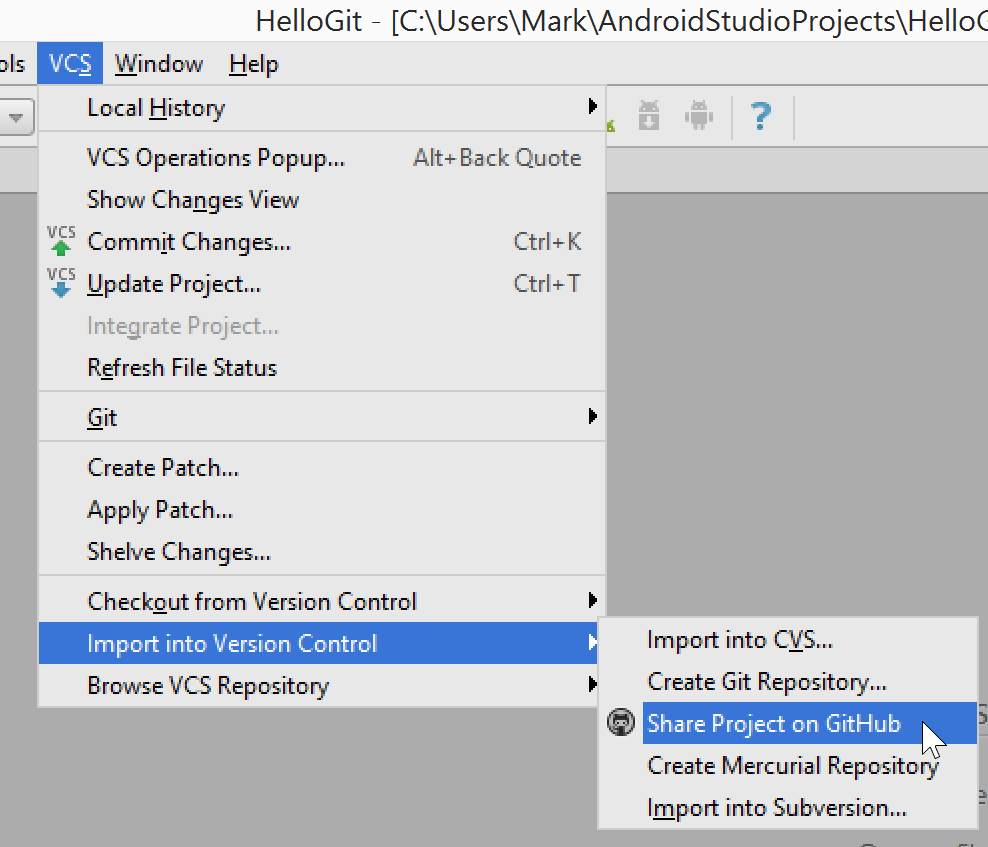
Android Studio 1.x Share Project on GitHub
You will be presented with a login screen, enter your GitHub username and password and click Login.

GitHub Login box for in Android Studio 1.x.
If this is the first time setting up a password in Android Studio you will be prompted to create a password database. If so, enter a master password (and again to confirm). I would suggest checking the Encrypt master password with user credentials box.
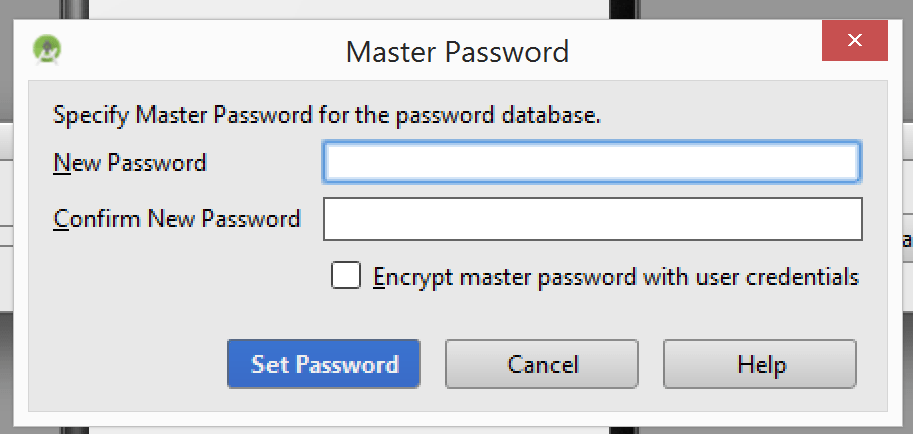
Android Studio 1.x Master Password Prompt
Next, you will see the Share Project on GitHub prompt. Enter a name for your new repository and a description. Then click Share to continue.

Share Project on GitHub Prompt on Android Studio 1.x
Next, you will be prompted with the Add Files for Initial Commit screen. This is where you can select the files to commit to your Git repository before you push it to GitHub. Usually you will want to select all files, however there are some cases where you may wish to exclude certain files which contain security keys, passwords etc… Check the files and click OK to push to GitHub.
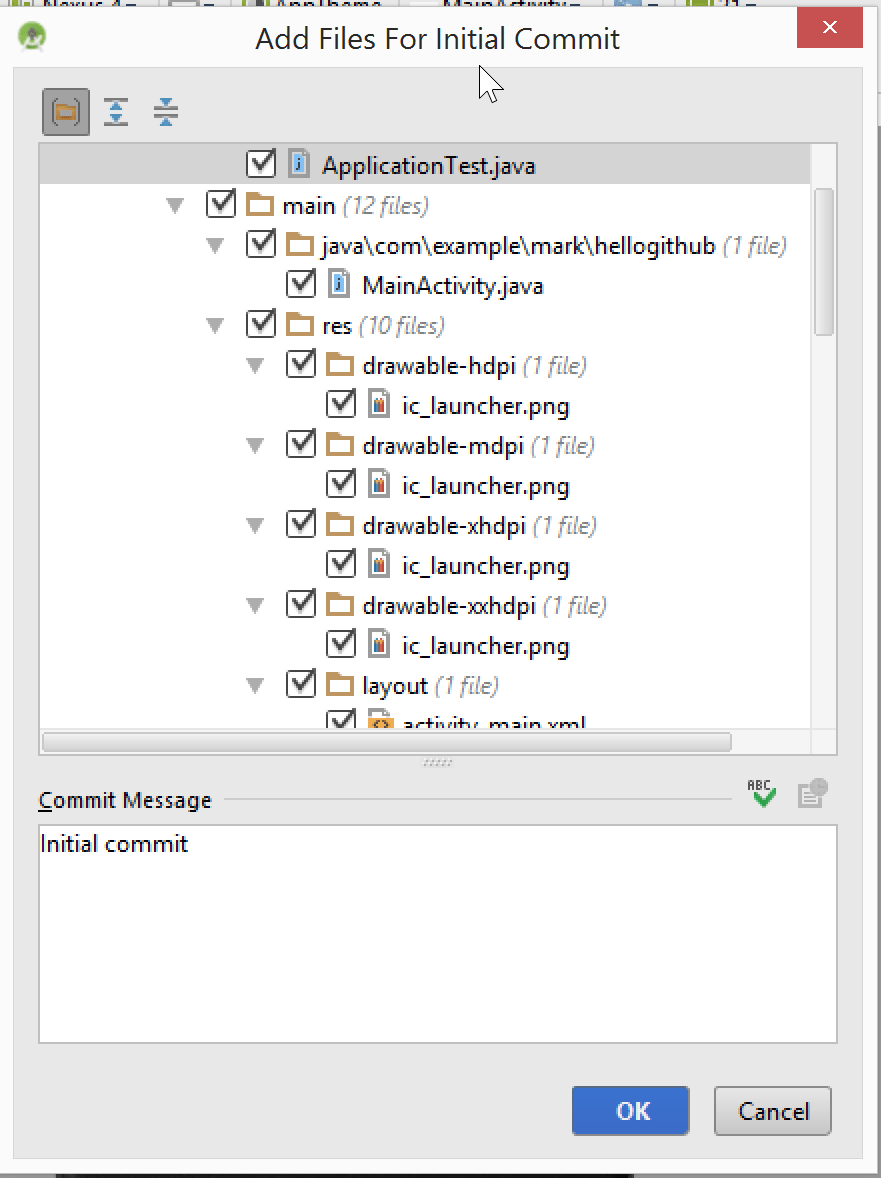
Android Studio 1.x Add Files for Initial Commit prompt.
If everything went well, you will see a message right at the bottom of Android Studio which says Successfully shared project on GitHub: <Project Name>.

Successfully Shared on GitHub message on Android Studio 1.x
If you login to GitHub and navigate to your repositories, you will see the new project in there.
 Android Studio project in GitHub
Thank you for reading! Check my other post How to clone a GitHub project on Android Studio for the demo on how to consume a cloned project.
Cheers,
Mark


Thanks for this Mark! My team (new developers) have tried to do this but are encountering incredible problems when one of us shares on github, as per the steps above, then others ‘import from version control’. The errors range from ‘this project is not gradle’ when it is, to ‘unable to find androidmanifest.xml’ and ‘cannot find symbol’ with the resources despite them all existing. Do you have any tips on avoiding these errors? We all have the latest IDE and support libraries.
Hey JM, I’ve replied to your comment via email.
I’ve been having similar issues just trying to transfer a project from one computer to another. Would you please send me your tips, too? Thanks!
Hi ! I’m having the same problems described by JM and i’ve tried everything to solve it, but nothing seems to work.
Could you send me your tips too ?
Thank you !
Hi Martin and Heather. Unfortunately we did not find a solution yet. JM switched to using a manual git collaboration. Could you send me some more details about the steps to re-create the issue (including the OS, version of Android Studio and Git you have) and I will try to reproduce my side and find a fix… You can send them to mark at londonappdeveloper.com
Thank you for this tutorial Mark! I have a problem with pushing my code to github, and the error I get is:
can’t add remote
fatal: remote origin already exists.
during execution git remote add origin
but when I try to remove the origin remote I get the error:
error: Could not remove config section ‘remote.origin’
How do I delete origin?
Hi Cynthia. No problem, thank you for reading. I have made a post which explains how to remote a remote: http://www.londonappdeveloper.com/how-to-remove-a-git-remote/. Let me know if this helps or if you have any other questions.
thank you very much, official documentation leads no where. this post of your is very helpful instead.
Hey Paul, I’m glad you found it helpful! Is there any other area that the official documentation is lacking that it might be helpful for me to make a video or post about?
thanks ,very useful post 😉
How can I adapt this to add multiple projects to the same repo? This is done in most colleges, etc, where the course is the repo, and each lesson is a project in that repo. However, when you add a project in Android Studio to GitHub, it adds the .git folder to the project folder, not the enclosing folder. Meaning, the repo can be only used for one project at a time.
Hi Phillip, thank you for your question. I don’t believe it’s easy to do this (and it’s not really a good idea). Maybe you could ask on http://www.stackoverflow.com?
I found you can’t, actually, with Android Studio. While it is considered ‘bad’ it is fairly common practice for most Universities, so that they can track your project in the course. For example, if your Java 101 class has 8 assignments, you’d have a Java 1 repo, with 8 projects in it. This way the instructor only has to be added once, and needs to only remember one address, versus 8.
I was able to solve my issue by just using the gitBash myself, and adding the repo to the root folder where Android Studio creates the projects (and a sub folder). Then, anytime I need to create a folder for the course, I just create it there, and boom, can upload, and appears as it’s own folder in the repo.
Love the stuff you do Mark 🙂
–Phillip
Hi Phillip,
Sorry I just saw this comment. That’s a shame they don’t offer the option to do that. Glad you figured out an alternative solution.
Thank you for the kind words 🙂
Cheers,
Mark
It say,” can’t find git.exe. ” Where do I find the path to that?
Hi Shweta. Is git installed on your machine? If not install it from here: https://git-scm.com/. What OS and version of Android Studio are you using?
Hello Mark,
I am struggling to get Android studio to ignore changes in all files that are generated behind the scene like the ones in the “.gradle” directory, the ones in the “build” directory, the “*.APK” files, etc…
Did you find out how to get this to work well?
Am I supposed to use a “.gitignore” file?
Am I supposed to use the “Configure Ignored Files” option in the “Version Control” panel?
None of them seem to work actually…
Your help would be welcome!
Regards,
Seb
Hi Seb, thanks for the comment. Definitely meant to use the .gitignore file. The first answer on this Stack Overflow post might be helpful: http://stackoverflow.com/questions/16736856/what-should-be-in-my-gitignore-for-an-android-studio-project. Let me know if this solves your problem or not.
Thanks for the advice. Problem solved!!!.
Well 2015 is almost over, and as far as I can tell, in the Linux environment Android Studio’s git integration is completely broken.
I tried something really simple (mentioned above, too): Create project, test it, then “share it on github.” Go to another identical instance of AS and try from the splash screen to import it. Errors, everywhere and no amount of futzing seems to fix it.
There’s a ticket been opened for 2 months with Google about this and it hasn’t even been assigned yet. Sort of a mega-disappointment now the Google has dropped support for Eclipse.
Hello Mark! I have suffered the problem for a long time :Can’t connect to repository from configured remote. You could want to check .git config.Do you want to proceed anyway? I can’t solve it !!Can you help me ?I am waiting for your answer!!Thank you very much!
Thanks for the comment. I’m not sure exactly what the issue is that you are having.. Could you perhaps share a screenshot?
Hello Mark ! I am using Android studio 1.3, I didn’t found option “Share project on Github” under “import into Version Control”. There are other five option under “import into Version Control” but “Share project on Github” option is not available there.
Please help me.
U are my last hope
Can you share a screenshot of the Import into Version Control option? Please send to mark at londonappdeveloper.com
Hi Mark, I followed your steps to share my project in GitHub. Once I select
“Share Project on GitHub” from VCS, it directly takes me to GitHub prompt as I have already given my credentials in Android Studio Settings. My Problem is, once I setup everything, it throws an error message as
“Successfully created project ‘MyProject’ on GitHub, but initial commit failed: *** Please tell me who you are. Run git config –global user.email “you@example.com” git config –global user.name “Your Name” to set your account’s default identity. Omit –global to set the identity only in this repository. fatal: empty ident name (for (null)>) not allowed during executing git -c core.quotepath=false commit -m “Initial commit” –”
Looking forward for the solution. Thanks in Advance.
Hi Anish, this is because git is not configured correctly on your local machine. Newer versions of Android Studio take care of this by prompting when you commit. You can try and manually make a commit by going to VCS > Commit Changes (I’m going from memory so the actual menu name might be a bit different). If that doesn’t work you can manually set the configs with Git. If you are using Windows, load up command prompt and type “git config –global user.email “you@example.com”” (replace the email with your email address) and then run “git config –global user.name “Your Name”” (replace your name with your name). Then try again.
Let us know how that works out.